Why Does Flutter Animation Lag When Using BackdropFilter?
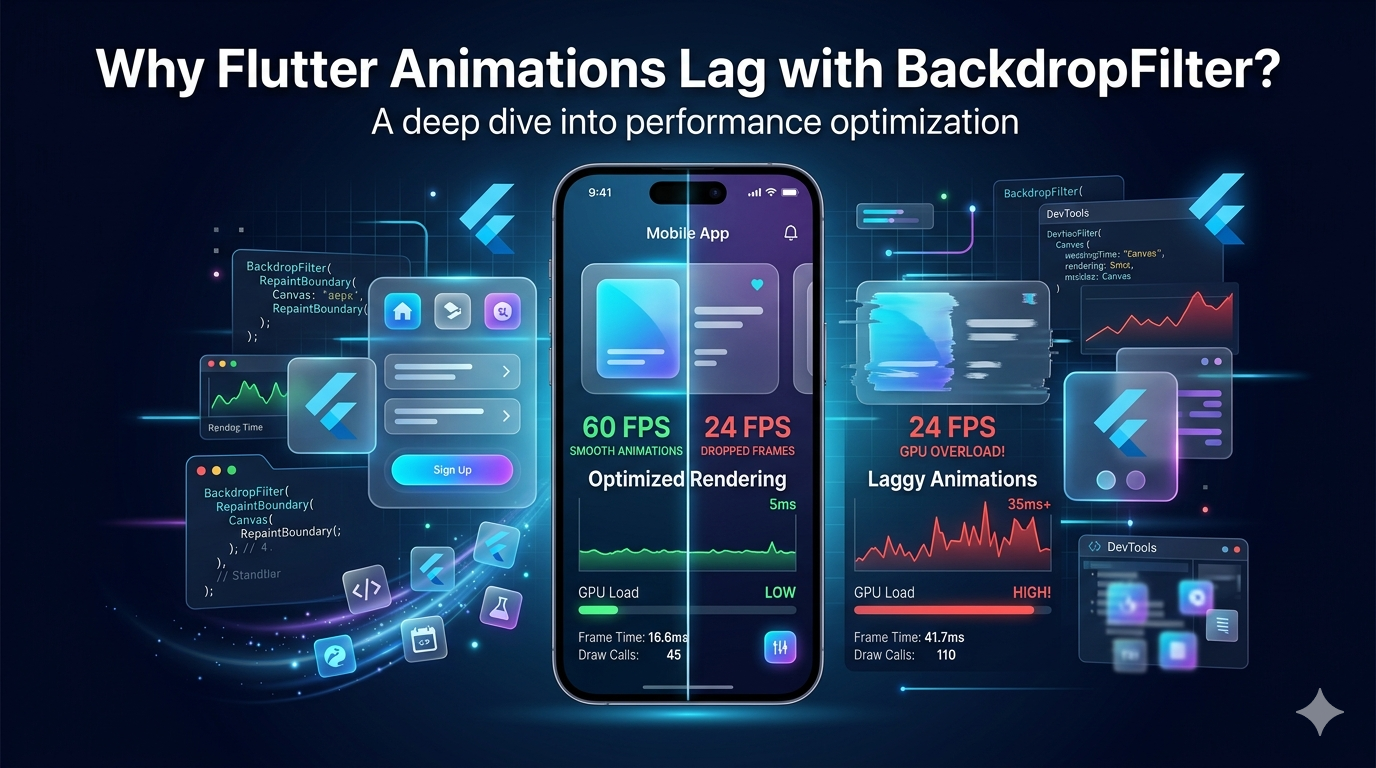
As Flutter developers, we've all experienced that moment when a beautifully animated UI suddenly starts dropping frames. One of the most common culprits behind this issue is BackdropFilter.
At first glance, BackdropFilter seems harmless. It helps us create stunning glassmorphism effects and modern UI designs with just a few lines of code. However, behind the scenes, it's doing a lot more work than most developers realize.
What Happens Behind the Scenes?
When Flutter renders a BackdropFilter, it cannot simply draw a blur effect directly. Instead, it must:
- Capture everything behind the widget.
- Apply the blur filter to that captured content.
- Render the blurred result back to the screen.
Now imagine this process happening 60 times per second during an animation.
That's where performance issues begin.
Why Animations Become Laggy
1. Large Blur Areas
The larger the blurred area, the more pixels Flutter needs to process.
For example, blurring an entire screen requires significantly more GPU work than blurring a small card or dialog.
A common mistake is applying BackdropFilter to a full-screen widget when only a small section actually needs the effect.
2. Animating the Blur Radius
Many developers animate sigmaX and sigmaY values to create dynamic blur effects.
While visually appealing, this forces Flutter to recalculate the blur every frame.
Instead of moving a widget, Flutter must continuously regenerate the blur effect, which is far more expensive.
3. Multiple BackdropFilters
Using several glass cards inside a scrolling list can quickly become problematic.
Each BackdropFilter creates its own blur pass, multiplying rendering costs.
What looks like five simple cards may actually be causing five separate blur operations every frame.
4. Missing Clipping
Without ClipRect or ClipRRect, Flutter may blur a much larger area than intended.
Developers often overlook this optimization, resulting in unnecessary GPU workload.
Always clip the region before applying BackdropFilter.
5. Low-End Device Limitations
Modern flagship devices handle blur effects relatively well.
However, mid-range and low-end Android devices often struggle because blur processing is GPU-intensive.
An animation that feels perfectly smooth on an iPhone may become noticeably laggy on an older Android phone.
Best Practices for Better Performance
Keep Blur Areas Small
Only blur the portion of the screen that actually needs the effect.
Smaller blur regions mean fewer pixels to process.
Use Clipping Widgets
Wrap BackdropFilter with:
- ClipRect
- ClipRRect
This limits the blur calculation area and improves performance.
Avoid Animating Blur Values
Instead of animating the blur radius itself:
- Animate opacity
- Animate position
- Animate scale
Keep the blur value static whenever possible.
Reduce Blur Intensity
Higher sigma values create heavier rendering workloads.
For most glassmorphism designs, values between 8 and 12 provide a good balance between visual quality and performance.
Consider Fake Glass Effects
In many cases, a semi-transparent container can create a similar visual appearance without the expensive blur calculations.
Users often cannot distinguish between a subtle transparency effect and a real blur effect, especially during animations.
BackdropFilter is one of Flutter's most visually impressive widgets, but it comes with a performance cost.
The issue isn't that BackdropFilter is poorly designed. The issue is that real-time blur effects are computationally expensive by nature.
If your animations feel laggy, don't immediately blame Flutter. Instead, inspect how BackdropFilter is being used.
A few small optimizations—such as reducing blur area, clipping correctly, and avoiding animated blur values—can dramatically improve frame rates and create a much smoother user experience.
Beautiful UI is important, but smooth UI is what users remember.